If you’re using a samba server to provide print services to Windows clients, why not take it one step further by offering point and print functionality. If you set this up, users *might* even be able to install printers themselves! At the very least it will save you time when you slave over their workstations and laptops.
This article assumes you already have samba running and set up to serve at least one printer. It also assumes that you are using user level security for access control. (security = user in smb.conf.)
First, you need to add a share to smb.conf. On our Red Hat system it’s installed in /etc/samba. The share must be named print$ – that is where the Windows clients will look for print drivers. It should be set up like so:
[print$] #dir for print drivers path = /share/printers guest ok = yes browseable = yes read only = yes #members of sys group wheel can install drivers write list = @wheel printer admin = @wheel |
Just for good measure, we also added the following line to our printers share:
printer admin = @wheel |
OK, now create the actual directory. It requires some special subdirectories for the drivers:
[root@bigdaddy share]# ls -ld printers/ drwxrwxr-x 3 root wheel 4096 Apr 23 14:18 printers/ |
Note the directory is readable and writable by the system group wheel, which has printer admin and write privileges on the share.
Under the printers dir, we need to create a subdirectory for each platform we’re installing drivers for. In our environment, there’s only Windows 2000 on i386 so:
[root@bigdaddy share]# ls -l printers/ total 4 drwxrwxr-x 3 root wheel 4096 Apr 24 13:46 W32X86 |
Now, log in to a Windows system and browse to the samba server, connecting as a user who is on the printer admin list on the server. Open up the “Printers” folder on the server. Right click on the printer you want to install drivers for, choose Properties. The following dialog box will pop up:
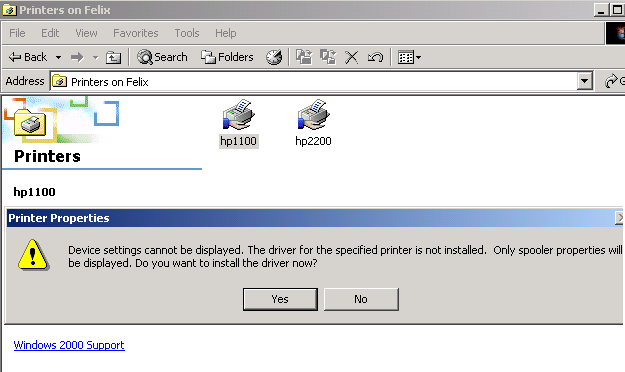
Click No. go to the “Advanced” tab:
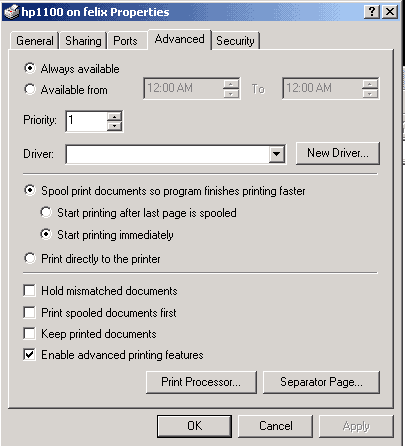
Click the “New Driver” button. Install the driver from Windows media, printer disk, or whatever. We installed from a network drive where we keep the print drivers. Errors related to permissions are most common, so make sure the user you are connecting as from your Windows workstation is a printer admin, and the users you’ve defined as printer admins have write permission on the print$ share directory. In our case we’ve used the system group “wheel” to define the printer admins. Also, if you are using “share” level security, none of this access control will work, even if you set the permissions on the $print share directory wide open for the whole world. That is because samba also updates some databases in /var/cache/samba (on redhat) and will only allow users defined as printer admins to do so. You will get errors telling you the media is write protected.
Screenshot of Successfully Installing Print Driver
Also, don’t forget to click “Apply” when you’re back in the Properties/Advanced screen after the driver’s installed!
On your samba server, you should see some new stuff in the print share directory. Ours looks like this as a result of installing the NT/W2K drivers for an HP LaserJet 1100:
[root@bigdaddy printers]# ls -l /share/printers/W32X86/ total 4 drwxr-xr-x 2 usr-3 usr-3 4096 Apr 24 17:08 3 [root@bigdaddy printers]# ls -al /share/printers/W32X86/3 total 3900 drwxr-xr-x 2 usr-3 usr-3 4096 Apr 24 17:08 . drwxrwxr-x 3 root wheel 4096 Apr 24 17:24 .. -rwxr--r-- 1 usr-3 usr-3 45056 May 4 2001 HPBAFD32.DLL -rwxr--r-- 1 usr-3 usr-3 8464 May 5 2001 HPBF201E.DLL -rwxr--r-- 1 usr-3 usr-3 108304 May 5 2001 HPBF201F.DLL -rwxr--r-- 1 usr-3 usr-3 1417488 May 5 2001 HPBF201G.DLL -rwxr--r-- 1 usr-3 usr-3 1096464 May 5 2001 HPBF201H.DLL -rwxr--r-- 1 usr-3 usr-3 349968 May 5 2001 HPBF201I.DLL -rwxr--r-- 1 usr-3 usr-3 46489 Mar 30 2001 HPBF201I.HLP -rwxr--r-- 1 usr-3 usr-3 46914 May 5 2001 HPBF201I.PMD -rwxr--r-- 1 usr-3 usr-3 185104 May 5 2001 HPBF201J.DLL -rwxr--r-- 1 usr-3 usr-3 460800 May 5 2001 HPBF201K.DLL -rwxr--r-- 1 usr-3 usr-3 99840 Mar 30 2001 HPBFTM32.DLL -rwxr--r-- 1 usr-3 usr-3 58880 Mar 30 2001 HPDCMON.DLL |
Now you can go to your workstation and install the printer by a simple 5 step process: 1. Double click add printer. 2. Choose Network Printer 3. Browse to or type in the name of \\server\printer. 4. Select whether you want this printer to be default. 5. Click Finish.
This is a great way to add functionality to your samba server, and make life easier for the masses and the technical elite alike.
A great collection of samba howto documents: Samba-HOWTO-Collection.pdf