The cacls command is used to edit and display file permissions on NTFS partitions.
Here is a list of the options:
D:\>cacls
Displays or modifies access control lists (ACLs) of files
CACLS filename [/T] [/E] [/C] [/G user:perm] [/R user […]]
 [/P user:perm […]] [/D user […]]
filename Displays ACLs.
/T Changes ACLs of specified files in the current directory and all subdirectories.
/E Edit ACL instead of replacing it.
/C Continue on access denied errors.
/G user:perm Grant specified user access rights.
Perm can be: R Read
C Change (write)
F Full control
/R user Revoke specified user’s access rights (only valid with /E).
/P user:perm Replace specified user’s access rights.
Perm can be: N None
R Read
C Change (write)
F Full control
/D user Deny specified user access.
You can specify more than one user in a command.
Wildcards can be used to specify more that one file in a command.
Let’s create a file to demonstrate cacls:
D:\>copy con test.fil
This is a test file to demonstrate cacls.
^Z
1 file(s) copied.
What is the ACL for test.fil?
D:\>cacls test.fil
D:\test.fil Everyone:F
The default is Everyone has full control. Not our favorite!
Let’s replace this with Administrator having full control:
D:\>cacls test.fil /g administrator:f
Are you sure (Y/N)?y
processed file: D:\test.fil
D:\>cacls test.fil
D:\test.fil REMOTE1\Administrator:F
Let’s add a local resource group we’ve made called rukloc with Read Only access, and a user called jsmith with full control:
D:\>cacls test.fil /e /g rukloc:r
processed file: D:\test.fil
D:\>cacls test.fil /e /g jsmith:f
D:\>cacls test.fil
D:\test.fil REMOTE1\Administrator:F
REMOTE1\rukloc:R
REMOTE1\jsmith:F
Here is how this looks from the GUI:
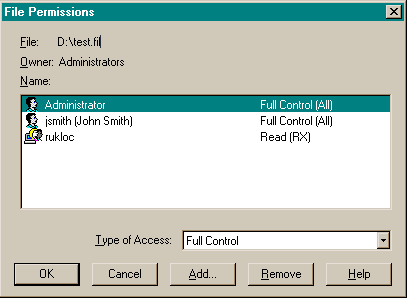
Of course, all that we just did could be done from the GUI very easily; however, it is much easier to automate command line utilities.