

As a network admin, you’d want to stay on top of the health and performance of every device and the best way to do that is through ping monitoring tools.
Ping monitoring, as the name suggests, is a tool that allows you to ping a device and wait for its response.
Based on the time it takes to respond, you can determine the health of the device.
These tools are widely used by many network admins because it is simple, effective, and easy to use.
There are many different ping monitoring tools available today and one of the most popular among them is EMCO Ping Monitor.
What is EMCO Ping Monitor and What Does it Do?
EMCO Ping Monitor is designed to ping different hosts on your network to detect outages or connection problems.
This tool uses ICMP pings to detect whether a device is working or not.
When a host responds to the ping echo request, it means the device is working and when there is no response even after multiple requests, it means the device is down and unreachable.
If the device is unreachable, it saves the information and sends notifications based on the configured details.
EMCO Ping Monitor not only checks the state of each device, but also estimates the connection quality by measuring latency, packet loss, and the time it takes to respond.
It takes into account all these values and determines if the connection is Good, Warning, Bad, or Critical.
You can even set custom thresholds and change the connection metrics to meet your requirements.
Besides detecting host and connection statuses, it also stores information about every ping, so you can use them for later analysis.
You can also get detailed statistics about outages, the percentage of uptime, latency, and more that can be used for your internal control processes.
Also, EMCO Ping Monitor comes with built-in tools for reporting.
The information it collects from every ping request is aggregated and represented on charts for easy readability and analysis.
It also helps to meet compliance standards.
As a network admin, this tool is sure to make your life easy as you have complete control over the working of each device and can also track its metrics at all times.
Features of EMCO Ping Monitor:
Notifications:
EMCO Ping Monitor uses ICMP pings to monitor the state and connection quality of devices.
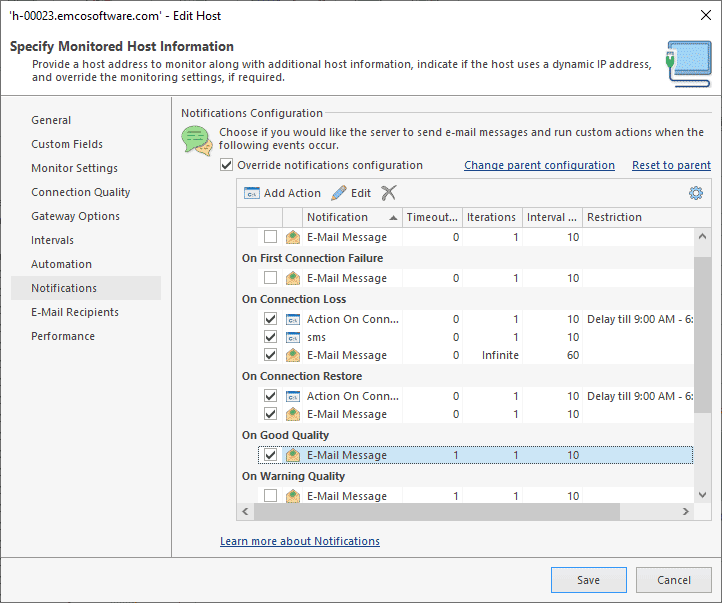
When any state/connection quality changes, it sends automatic notifications based on your configuration.
You can choose to get the notifications sent via email or even as a balloon that pops up in your Windows Systems tray.
In general, there are two types of notifications, namely, the client and server notifications.
The server notifications are often sent through emails while the client notifications are displayed as balloons on the systems tray or as sounds.
Scalable:
It can monitor any number of hosts, even a few thousands, based on your network requirements.
EMCO Ping Monitor continuously pings each device at the specified interval and checks if their state and connection quality.
Detects the change of state in devices:
When the tool has started monitoring a device, you can find the details of its state and connection quality in the Overview pane.
The three groups of circles you see correspond to the three charts on the right.
The first chart shows the number of devices that are active, inactive, and paused while the second one shows how many devices are up, down, and are pending to respond.
The third chart shows the connection quality of different devices.
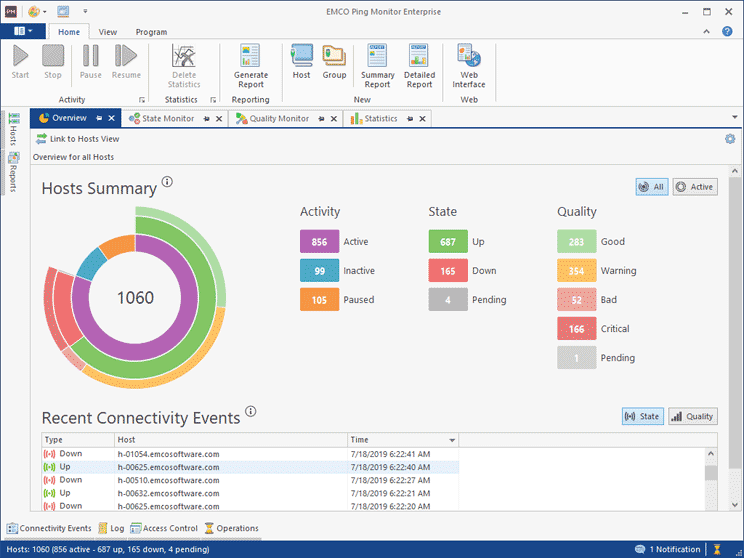
This tool automatically tracks the performance of all these devices and updates the pane in real-time, so at any point, you know the devices that are working and down.
Consolidated View:
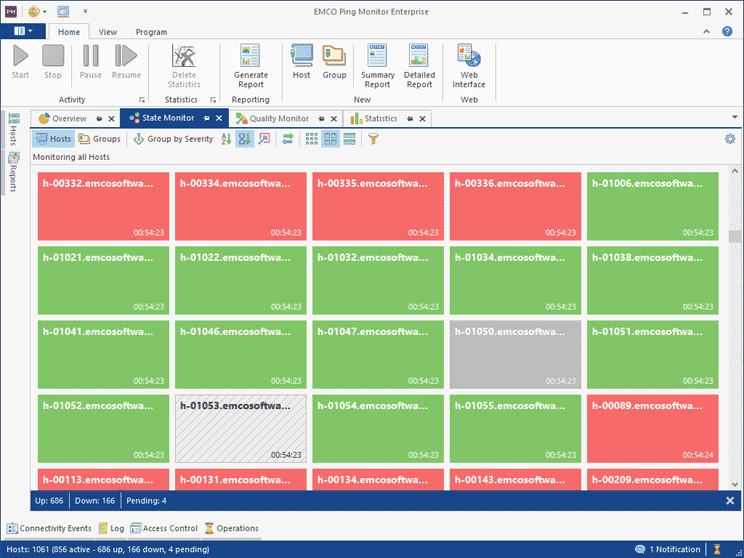
Another salient feature of this tool is that you can see the state of all hosts on a single screen as it is displayed in a consolidated grid.
The boxes in red show the devices that are not working while the green boxes indicate the working devices. The grayed ones are yet to send their responses.
Grouping of Hosts:
You can organize the hosts based on many criteria, so you can get a bird’s eye view of the state of your devices.
For example, you can group them based on location to know how many devices in each country are up/down.
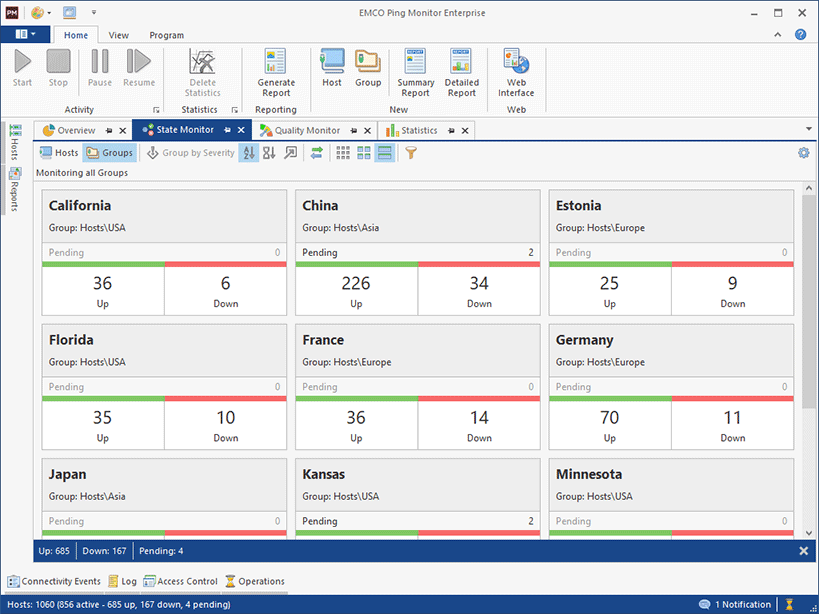
This tool also comes with many filters that you can use to get the right display that will help you to make the right decisions.
Drill-down Information:
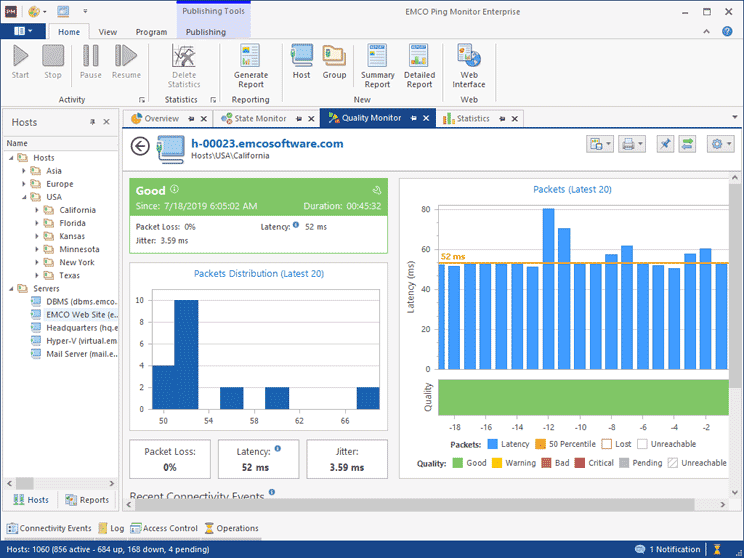
You can always click on any single host to get detailed information about that particular device.
The information displayed in real-time shows the number of pings that have failed and the ones that were responded to.
Complete Control:
You can have complete control over the tool.
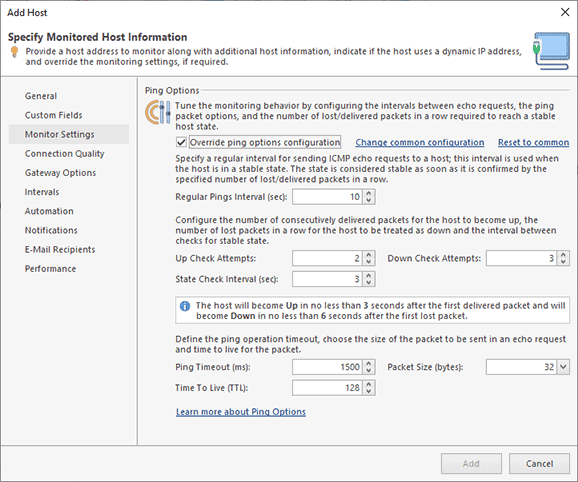
In the Configurations tab, you can determine the thresholds, frequency of ping, latency percentile, and other values to meet your individual needs.
The values present in it are the default ones and you can always change them at any time.
Quality Monitor:
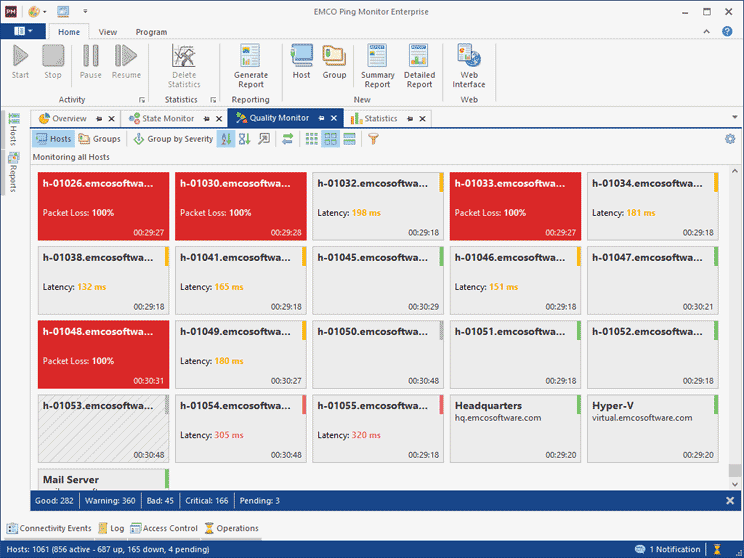
The quality of connection monitor gives a grid-like overview to give you an idea of the state of different devices and when you click on individual hosts, you get detailed information about the ping and its different metrics.
Client-Server Model:
EMCO Ping Monitor comes in a client-server model, where the server is EMCO Ping Monitor Enterprise Server 7 Windows service and the client is the program running on any user session.
This tool uses 48017 as the port to connect to the server through Windows credentials and 48018 to connect through an SSL channel.
You can always change the ports in the Windows registry.
Detailed Statistics:
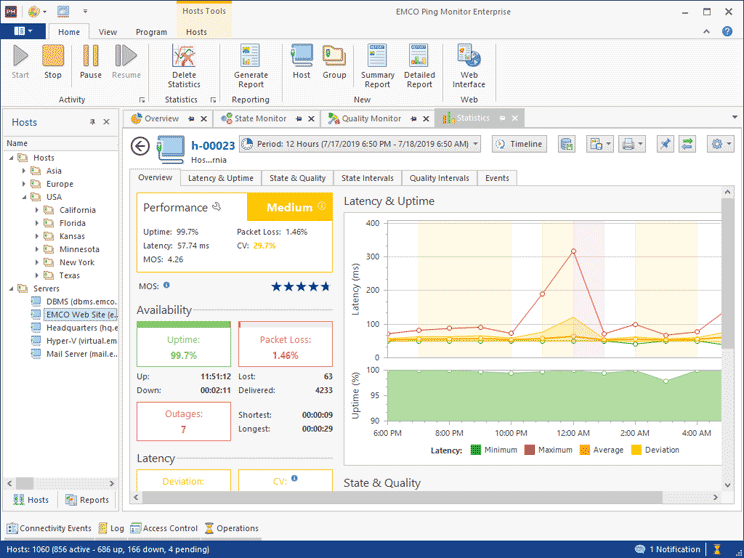
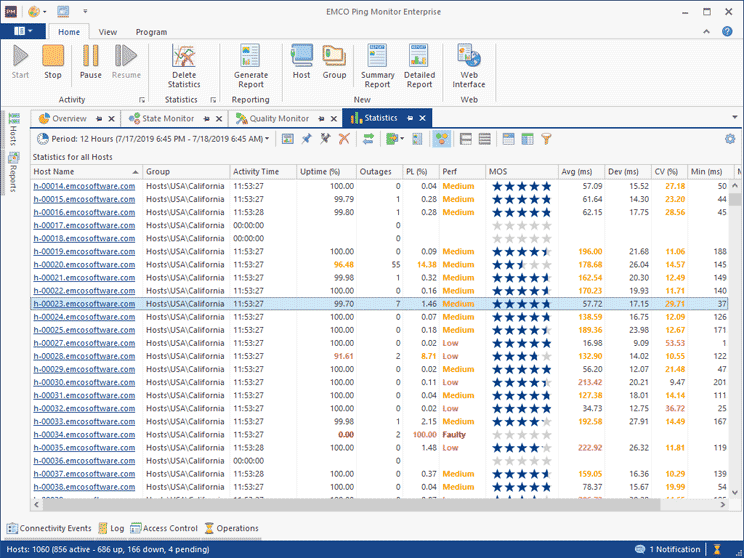
EMCO Ping Monitor collects information to give you detailed statistics about the performance of different devices.
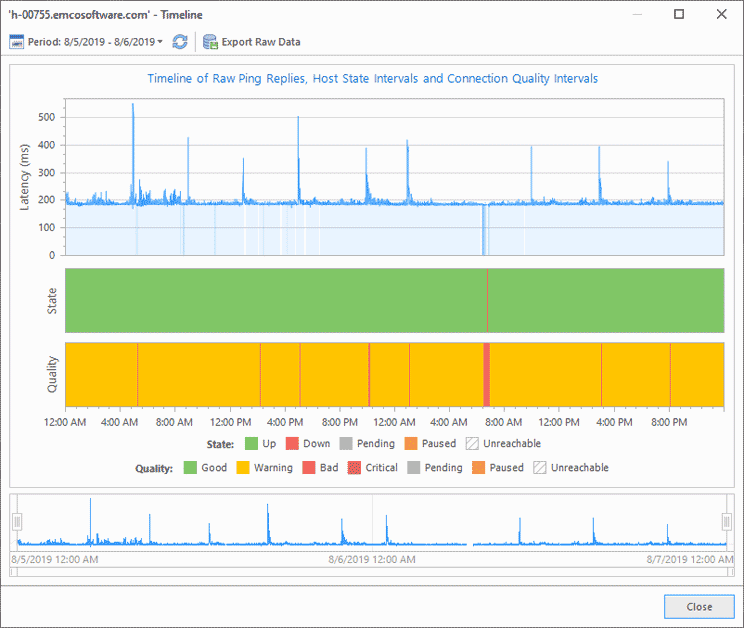
You can search for statistics over a defined period and the tool will display this information in a grid form.
Based on what you’re looking for, you can click on individual hosts to get more information.
You can view the data in many formats. For example, you can see them over a timeline or in the form of a chart.
Also, you can use different filters to drill down to specific information.
According to your needs, you can always drill it further down to get to the root cause of a problem.
Easy Integration:
EMCO Ping Monitor easily integrates with other software to give you the flexibility to extend its use.
The easiest way to integrate is through a custom action, which is nothing but a script or command that’s executed on the server.
You can configure this custom action on the notifications page of the tool.
Thus, these are some of the important features of EMCO Ping Monitor.
Editions
There are three editions, namely, Free, Professional, and Enterprise Editions.
Here is a snapshot of the features available in each of these three editions:
Feature |
Free Edition |
Professional Edition |
Enterprise Edition |
| Price | Free | $199 USD | $445 USD |
| Number of simultaneous hosts | 5 | 250 | Unlimited |
| Individual monitoring setting for hosts/groups | No | Yes | Yes |
| Connection Statistics | 30 days | Unlimited | Unlimited |
| Compact representation | No | No | Yes |
| Monitoring Server | No | yes | Yes |
| Simultaneous local connections | None | 2 | Unlimited |
| Simultaneous remote connections | None | None | Unlimited |
| Web interface | No | No | Yes |
| User Access permissions | No | No | Yes |
Conclusion
To conclude, EMCO Ping Monitor is a comprehensive tool that’s used to monitor the state and connection quality of all the devices on your network.
It’s many unique features give you complete control over the monitoring process and at the same time, give you detailed information to understand the root-cause of problems and to help you make quick decisions.