

Staying on top of resources within your organization such as users, files, and printers is essential, but not easy.
Active Directory (AD) is a Microsoft service available in Windows Server operating systems that holds information about users, computers, printers, shared files and folders, and other devices.
It is similar to a telephone directory, except that it is a software that helps to arrange and store this information, so you can access them at any time.
It also provides access and permissions on these resources and this ensures that you stay on top of your resources and its use at all times.
Active Directory is also simple to use and intuitive for the most part.
In this article, we’ll see how to easily configure the domain password policy for AD.
AD comes with a default domain password policy and you’ll have to abide by its rules while creating a password.
Locating the Default Domain Policy
To view the default policy,
- Go to Start and click Run (or Press the Windows + R keys at the same type to bring up the run window)
- Type gpmc.msc and hit Enter.
- This will open the Group Policy Management Console and this is where you can find AD’s default domain password policy.
- Expand on Forest -> Domains -> Your Domain.
- Navigate to a folder called “Group Policy objects”
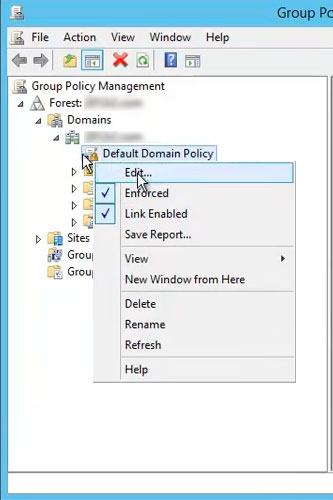
- When you click this folder, you’ll notice a few files under it. Navigate to a file called “Default Domain Policy.” Right-click on this file and choose “Edit”
- This should open a new window with a few more files and folders.
- Go to Computer Configuration -> Policies -> Windows Settings -> Security Settings -> Account Policies -> Password Policy
- When you click on Password Policy, you’ll see a list of files on the right-hand pane and each of these is different aspects of the policy such as the minimum password length, password, age, and more.
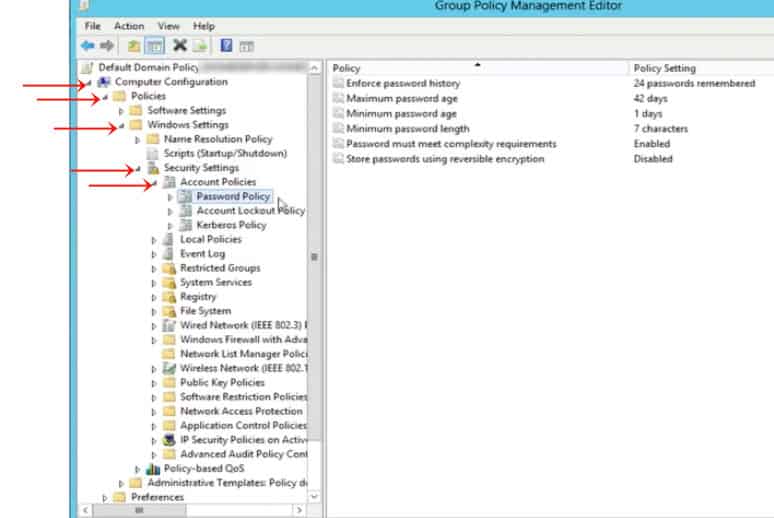
- Click on each of these files to have a look at that specific aspect of the password policy.
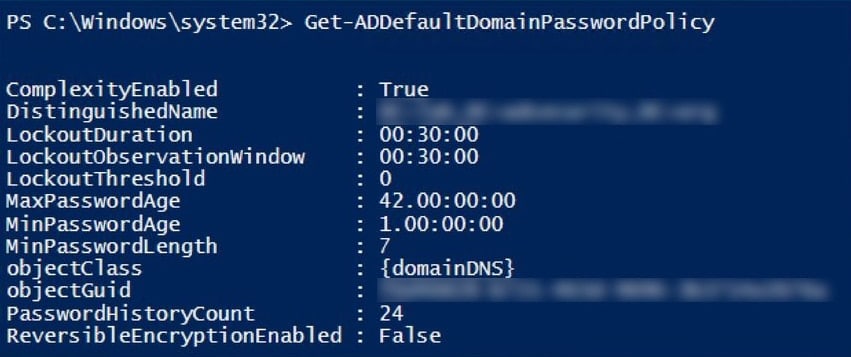
If this sounds too cumbersome for you or if you’re familiar with PowerShell, simply use this command.
Get-ADDefaultDomainPasswordPolicy
You can see the default settings like this.
Changing the Password Policy
Now that you’ve seen the default values, you might want to change them to suit your organization’s policies. To make the change, follow the above navigation and get to the default values of your policy.
- Double-click on each of the settings you see on the right-hand pane and this will open a window that shows the default value.

- Simply change the default value, press Ok and Apply.
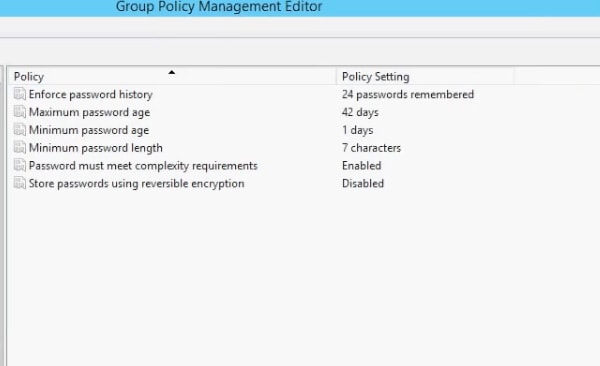
And that’s it! It’s really that simple to make this change.
Understanding the Default Values
So far, we have seen how to view and change the policy. But you must know what each of these default settings means, so you can make the required changes. So, let’s take a look at each of the settings.
- Enforce password history
This setting determines how many unique passwords you should have before you can reuse an old password. The default setting is 24, which means you should change your password 24 times before you can reuse the first password. This is really cumbersome, so please change this setting for your users! - Maximum password age
This setting determines how many days you can use the same password. The default value is 42. - Minimum password age
This setting determines how long a password must be used before it can be changed. The default value is 1 day. This setting is important to ensure that you don’t keep changing your password multiple times a day! - Minimum password length
This setting determines the minimum length (characters) of every password and the default value is 7. This means your password should have a minimum of seven characters. - Store passwords using reversible encryption
This setting allows your operating system to store passwords using reversible encryption. This setting must never be changed unless you have a specific requirement for any application. - Password must meet complexity requirements
Every user should create passwords that meet these requirements. Otherwise, the password will not be accepted by the system. The default values are- The password should not have two consecutive letters of the user’s account name or password name.
- It should contain characters from the following categories – English uppercase characters, English lowercase characters, digits from 0 to 9, and non-alphanumeric character such as !, @, #, *
Thus, these are the default values. You can change these values based on your organization’s password policy or to meet other compliance standards. You can also consider using CIS benchmark password settings or Microsoft’s recommended password settings if that works easier for you.
In all, changing the default domain policy is a piece of cake and we hope the above steps help you in this process.
ManageEngine ADSelfService Plus – FREE TRIAL
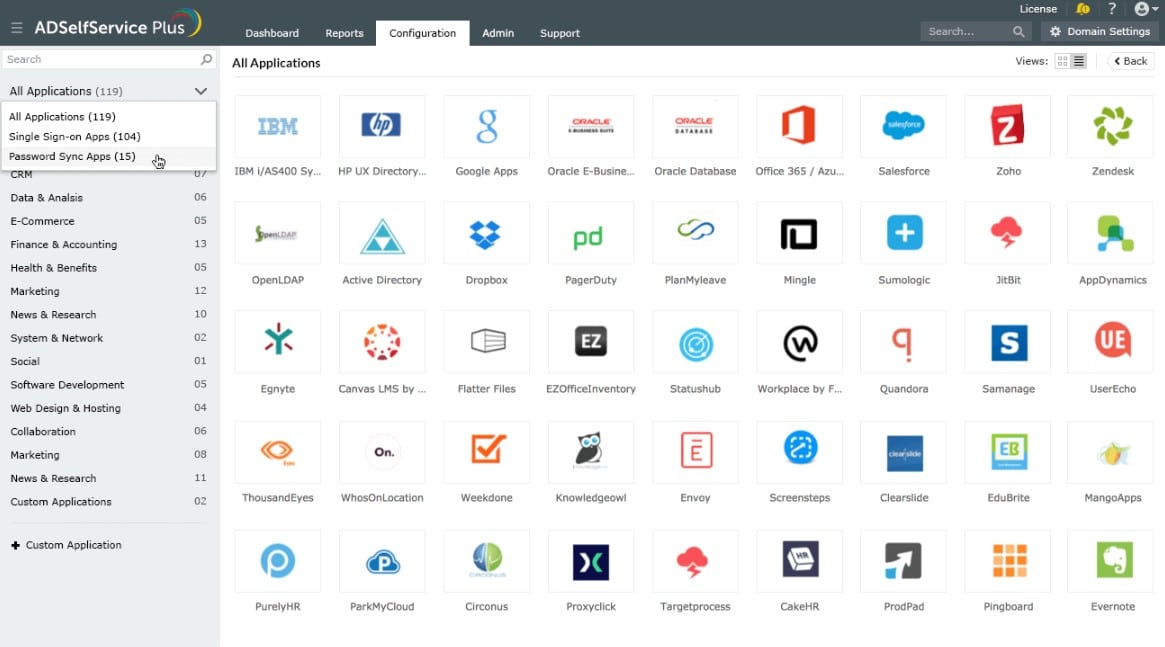
If you struggle to create a meaningful and effective password policy or you just don’t have the time to maintain passwords and all related issues, you should, perhaps, try an automated tool. ManageEngine ADSelfService Plus is a worthy option here., It creates a front-end to Active Directory and includes a guided password policy creation system. Once you have set that policy, the tool will pass those settings through to all of your AD domain controllers. This gives you the option to create a single sign-on environment for your users.
Why do we recommend it?
During our trial of ManageEngine ADSelfService Plus, we were particularly impressed by its guided password policy creation system, which made enforcing security protocols across our AD domain controllers a lot easier. We also tested the multi-factor authentication and self-service password reset features, confirming their effectiveness in enhancing security while reducing the workload for technical staff.
This service creates a user portal that grants access to all permitted applications with a single sign-in event. The service can be set up to include multi-factor authentication and the portal provides a self-service password reset function that deals with forgotten passwords without using up the time of technical staff.
Who is it recommended for?
This tool is highly recommended for organizations that use Active Directory and are looking to automate password management, enhance security through multi-factor authentication, and simplify the user sign-in process. It’s particularly useful for IT departments that want to free up time by automating password-related tasks and offering self-service options to end-users.
You can get a look at ADSelfService Plus with a 30-day free trial.